Connect
Let an AI read your memories: the MCP address and client catalog, the skill way with a developer key, and an app’s page.
Connect is where an AI gets permission to read your memories. There are two ways to connect an AI, and the page has a tab for each.
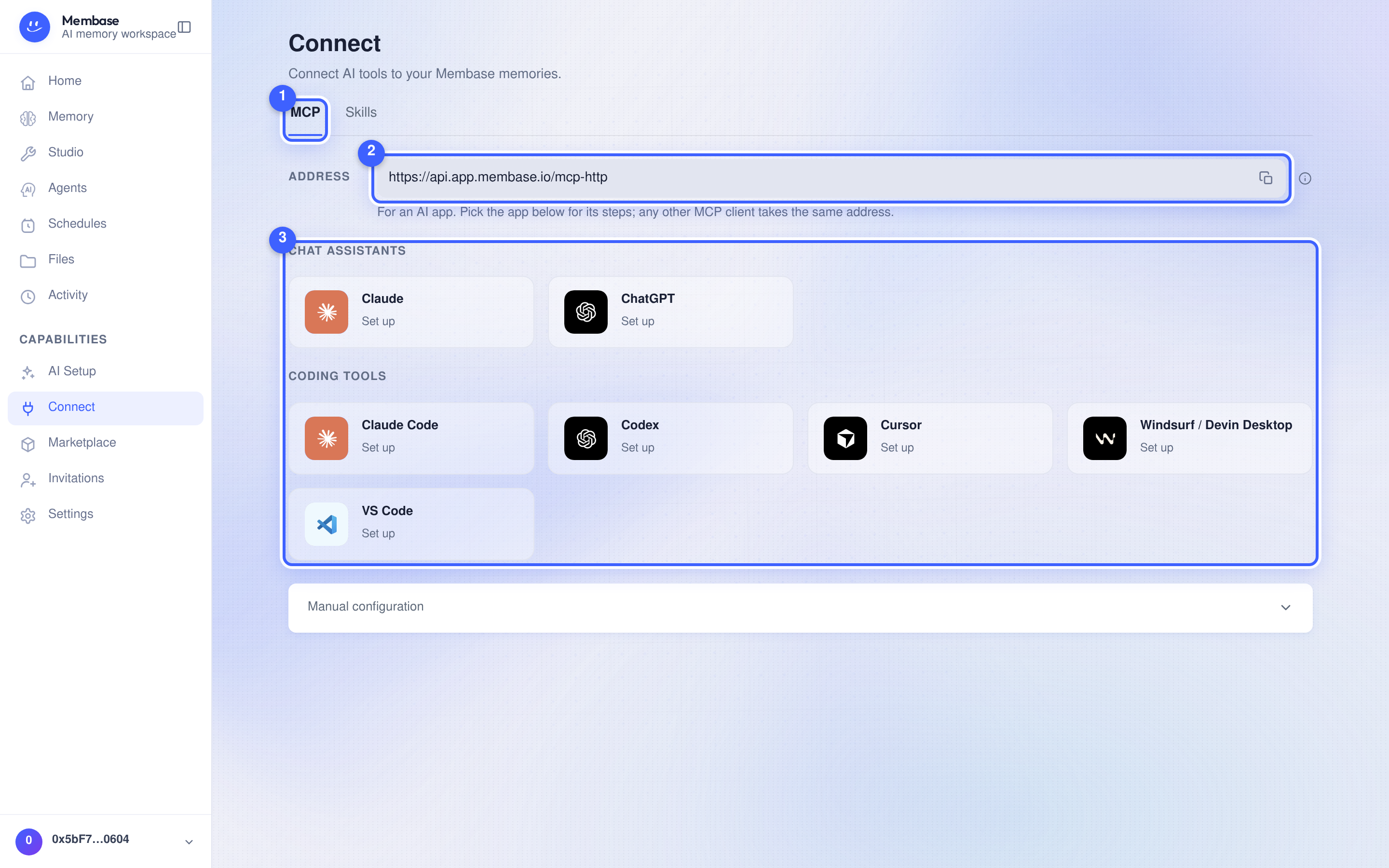
- The tabs. MCP is for an AI app; Skills is for an AI that reads pages and runs commands. Each tab holds everything its way needs.
- The address (MCP tab). Copy it into the app’s connector or MCP settings; the app opens your browser and you approve it on the consent card, ticking the memories it may read. An app connected this way can only read.
- The client catalog, by purpose. Chat assistants and Coding tools. A dashed tile says Set up and unfolds that app’s steps; a solid tile says Authorized · awaiting first use or Authorized · used … and opens the app’s page; Approval expired · authorize again means the app must sign in again. An app that has no tile of its own (any other MCP client) appears under Other apps, with a monogram, once you have approved it.
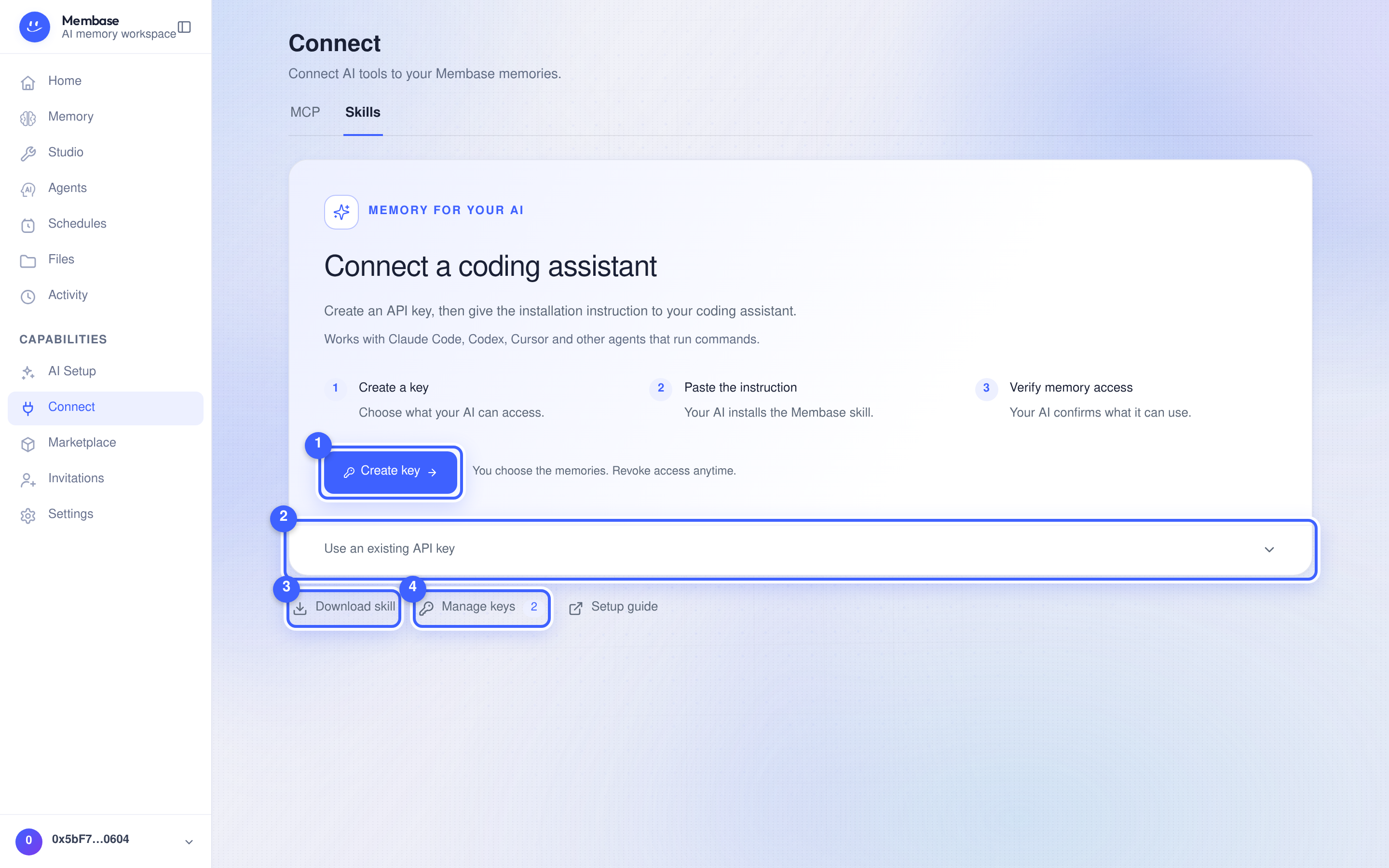
The Skills tab keeps setup in three steps: create a key, paste the instruction, and let your AI confirm which memories it can use. It works with coding assistants such as Claude Code, Codex and Cursor that can read pages and run commands.
- Create key. Choose the access and memories your AI may use.
- Use an existing API key. Expand this to copy an installation instruction without creating another key. Your AI installs the skill, then asks for your existing key.
- Download skill gets the complete folder for a manual installation. Setup guide opens the detailed instructions.
- Manage keys opens your developer keys, where you can change access or revoke a key.
The skill way, step by step
Section titled “The skill way, step by step”- Press Create key. The Create an API key dialog starts with name my AI and access Read & write. Choose the memories it may reach and press Create key.
- Copy the instruction on the next screen. It includes the key, which is shown only once.
- Paste it to your AI. It installs the skill, stores the key, and reports which memories it can use. If none are selected, open Manage keys, choose the key, and update its memory access.
The skill uses the API with your developer key. If the AI already has Membase MCP tools, it uses those tools and keeps the skill for its rules.
Manual MCP configuration is under MCP › Manual configuration. The API is documented on the developer docs’ API reference.
Set an app up by hand
Section titled “Set an app up by hand”Picking a dashed tile unfolds the connector URL and the steps for that app:
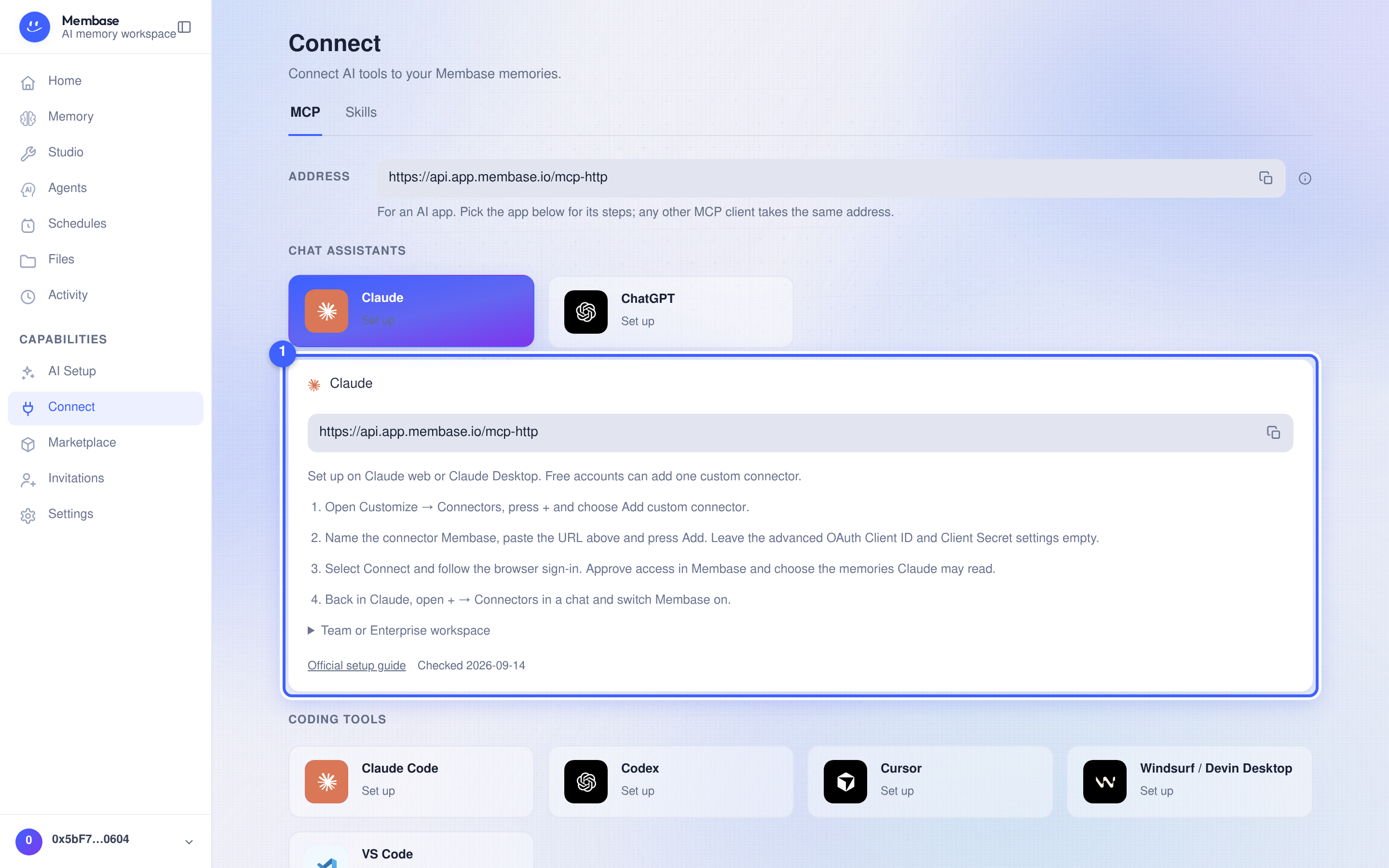
- The steps. Written for that app’s own menus. Follow them in the app; the last one brings you back here to approve access and tick the memories the app may read.
An app’s page
Section titled “An app’s page”Once connected, the tile opens the app’s page: the hero (name, Authorized · used … or Authorized · awaiting first use, and the amber words No memory access while no memory is switched on), a Uses card with one row per memory and its switch, and, when there is more than one approval, an Approvals card with a Revoke per credential. Disconnect… in the hero revokes every approval at once.
Connecting is the account’s, once. Which memories an app uses is the memory’s, and the switch on the app’s page and the switch on the memory’s Use in card are the same switch.
What the app can do
Section titled “What the app can do”A connected app gets two tools: list the memories it may use, and search them. It cannot see memories you have not switched on for it, and it cannot tell that they exist. Turning a switch off takes effect on the app’s very next question. If you ticked Profile access when approving, it also gets your profile — the standing facts your assistant keeps about you and what changed recently. That tick lives on the consent screen only: the app’s page has no profile switch, so to change it, Disconnect… the app and approve it again. An app can never add, delete or forget anything.
Developer keys
Section titled “Developer keys”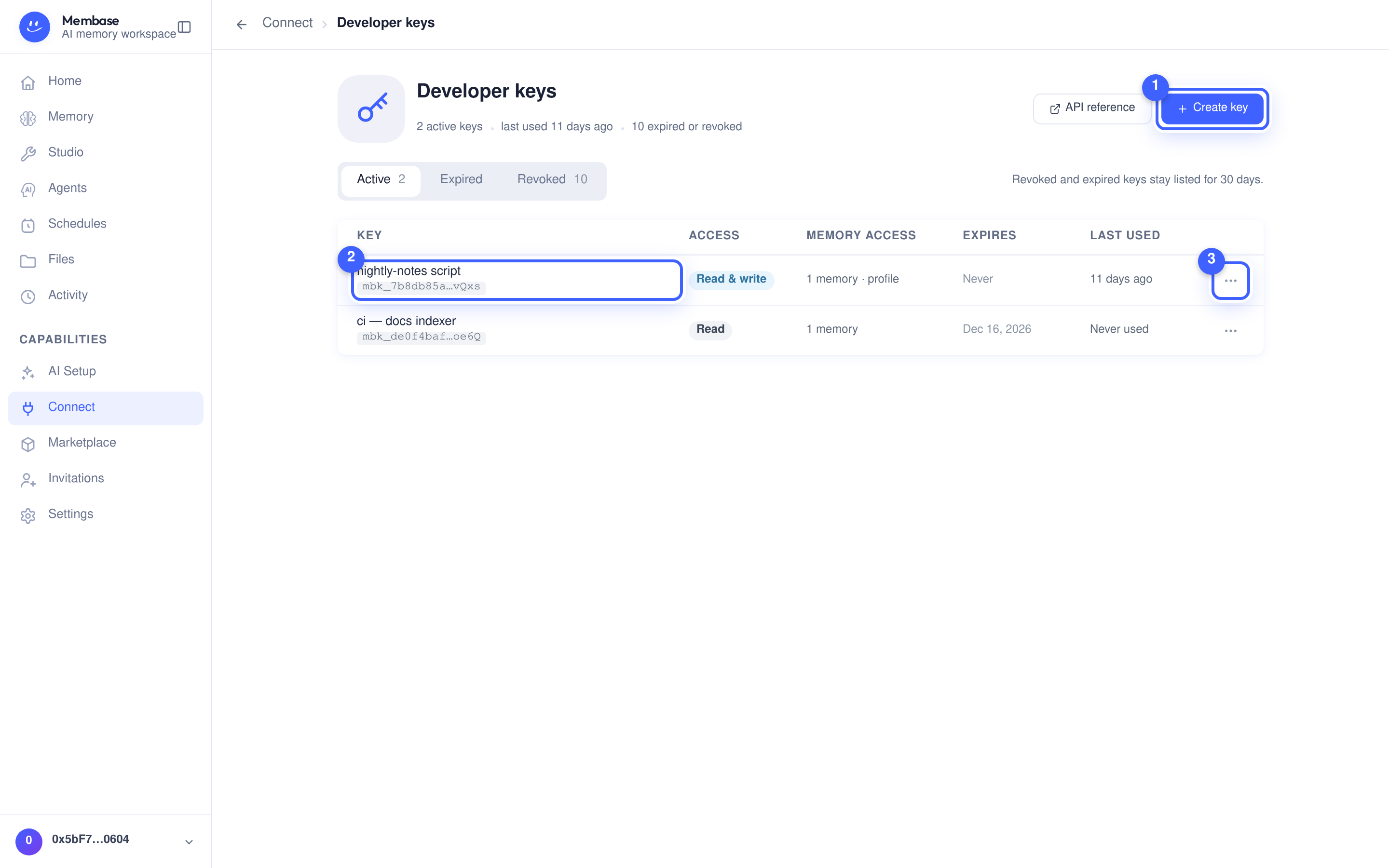
A developer key is your own credential for a script, a server, an SDK or an AI that runs commands. It reaches your memory the way a connected app does, over the memories you choose, at an access level you pick, for as long as you say. Connected apps do not need one; they approve on the consent screen.
Manage keys on the Skills tab opens the keys page. Every key is one row: name and hint, access, reach, expiry, last use. Active, Expired and Revoked are the three segments; a key that has stopped working stays listed for 30 days so you can see what it was. Create key makes one; the name opens the key’s page; ⋯ at the end of a row holds Rotate… and Revoke….
Create a key
Section titled “Create a key”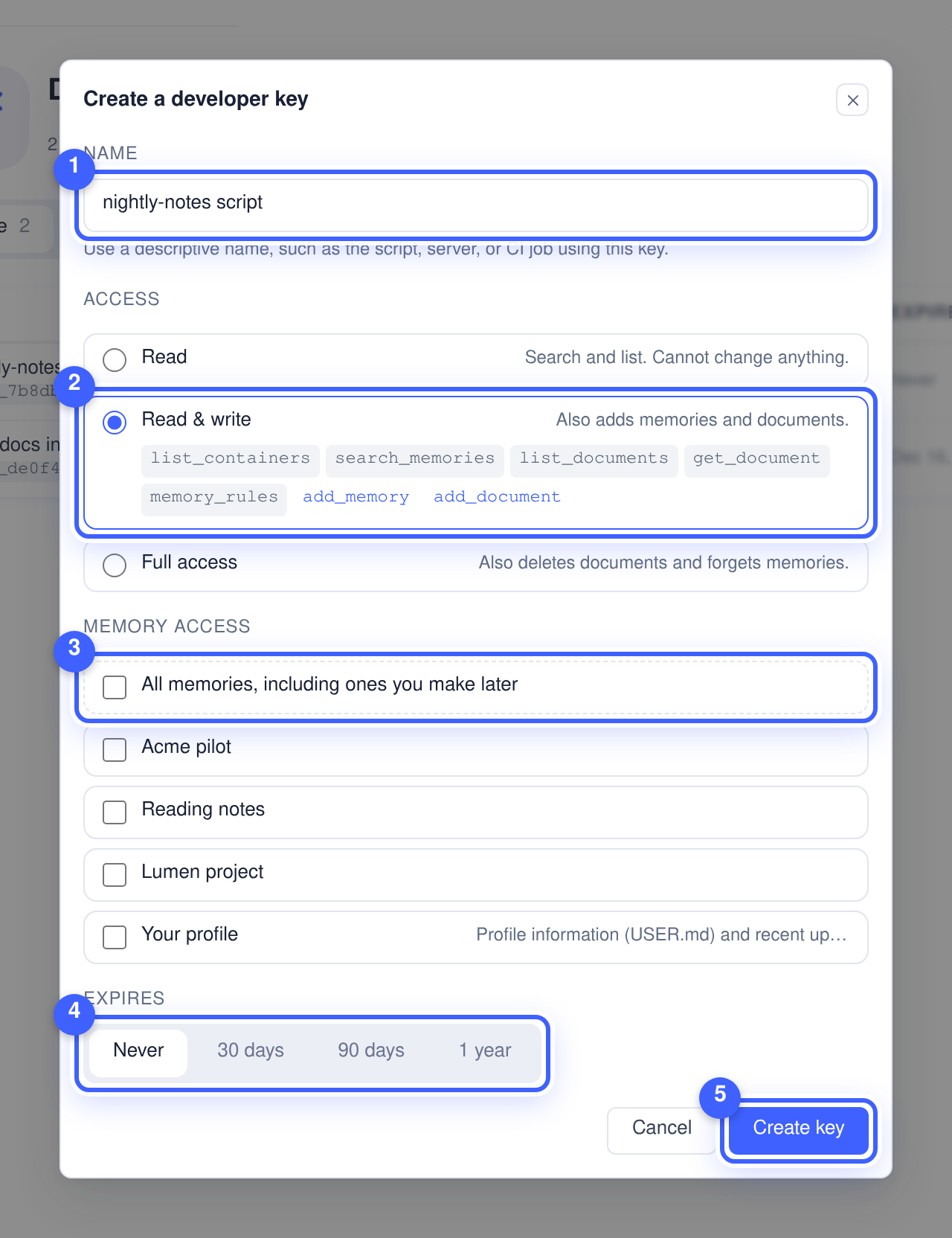
- Name (1) it after what will hold it, for example nightly-notes script, so a revocation stops one thing.
- Pick the Access (2). The level you pick shows the tools it gets:
- Read — search and list. It cannot change anything.
- Read & write — also adds a memory or a document.
- Full access — also deletes a document or forgets a memory. Each of those calls must still say so explicitly; a key never removes anything on its own.
- Pick the Memory access (3). Nothing is ticked to begin with. Tick the memories it may use, or All memories, including ones you make later. Your profile, the standing facts your assistant keeps about you, is the last row.
- Pick when it Expires (4): never, 30 days, 90 days or a year.
- Press Create key (5).
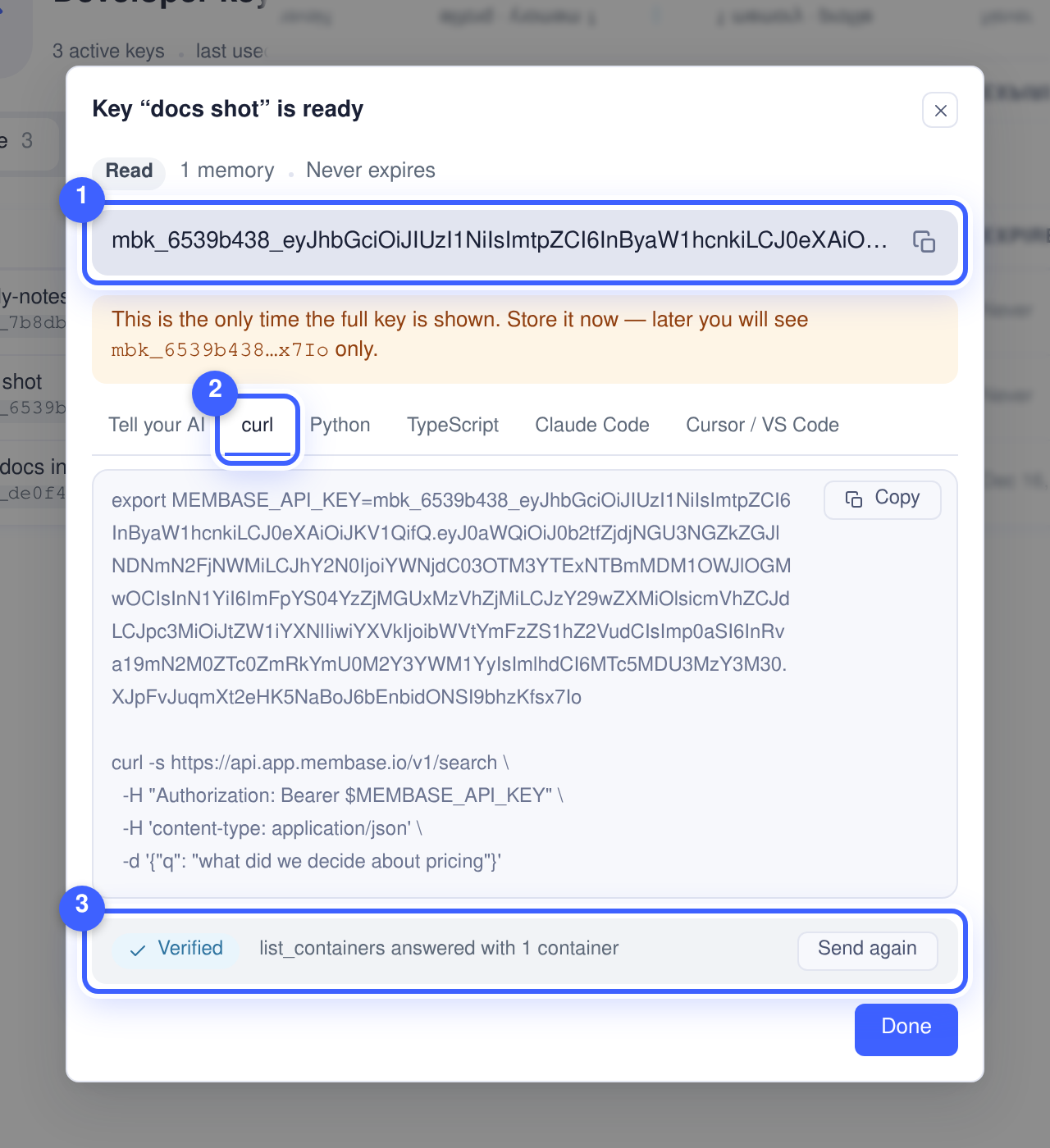
The token (1) appears once, in full. Store it now: afterwards the app shows only its hint,
such as mbk_7f3a92d1…c91e, which is enough to tell your keys apart and never enough to use
one. The same screen gives the token in six shapes (2): Tell your AI (the one sentence
from the Skills tab), a curl call, Python, TypeScript, the Claude Code command, and the
mcp.json block Cursor and VS Code read. A key created from the Skills tab’s Create key
shows only the Tell your AI sentence, and a key’s page shows no snippets afterwards.
Send a test call (3) makes one real call with the new key from your browser and reports
Verified, and how many containers list_containers answered with.
Using the key from a script or an SDK is the developer Quickstart; using it in Claude Code, Codex, Cursor or Kimi Code is on each client’s page under Connect your AI.
A key’s page
Section titled “A key’s page”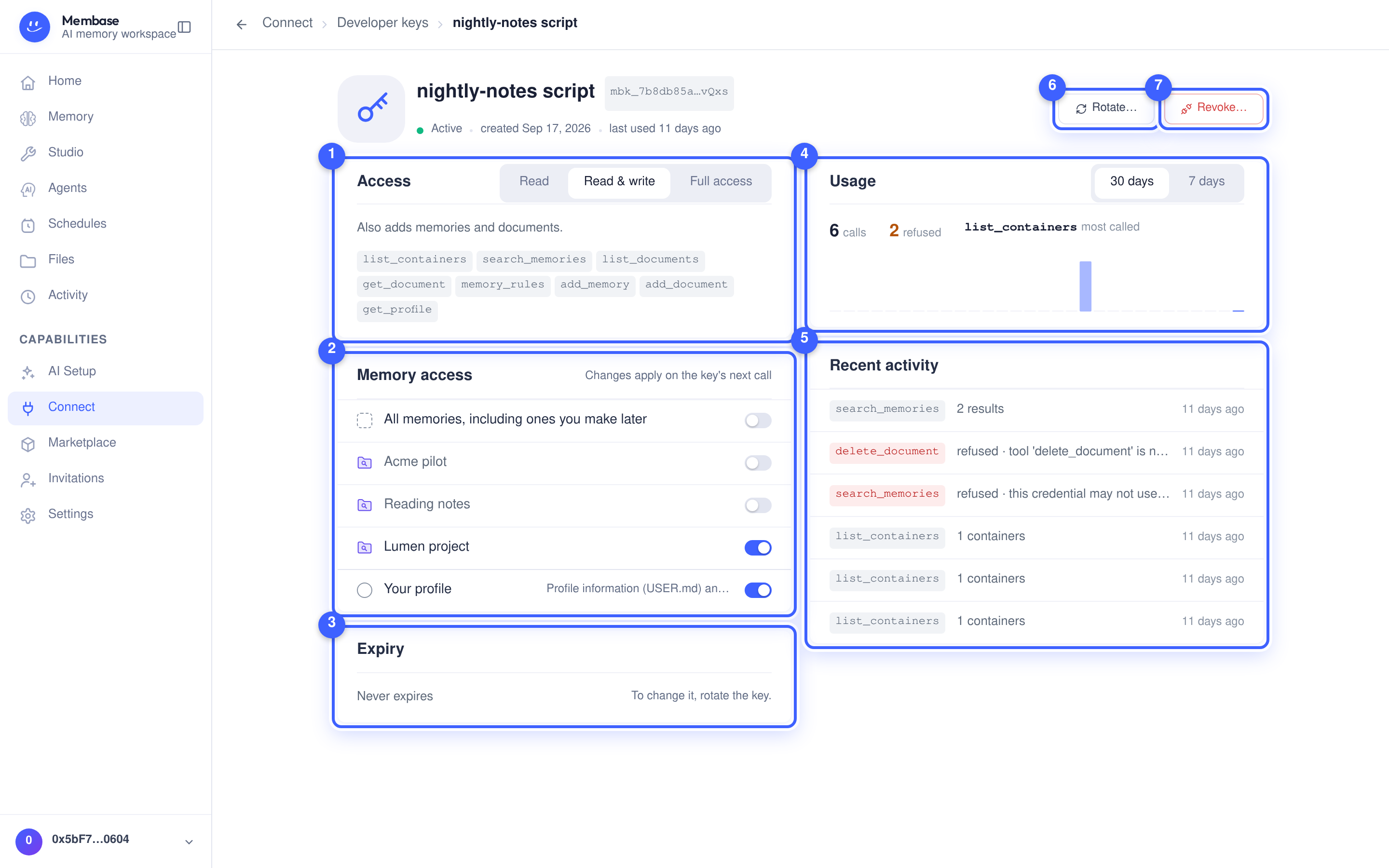
- Access (1) — change the level with the segmented control; the tools it now holds are listed under it. The change applies on the key’s next call; the token stays the same.
- Memory access (2) — a switch per memory, one for All memories, including ones you make later, and one for Your profile. Off takes effect on the key’s next call.
- Expiry (3) — when the token stops working. It cannot be extended; to change it, rotate.
- Usage (4) — calls in the last 30 or 7 days, how many were refused (the key asked for a memory or a verb it does not have), and the tool it calls most.
- Recent activity (5) — the last calls one by one: tool, memory, what came back, when. A refused call is red and says why.
Click the name to rename the key. Which memories a key reaches can also be switched on the memory’s own page under Use in, where keys are listed after the apps.
Rotate and revoke
Section titled “Rotate and revoke”Rotate… (6) makes a new key with the same access, reach and expiry, and asks what to do with the current one. By default it keeps working until you revoke it, so you can swap the value in your environment first; or revoke it on the spot.
Revoke… (7) ends a key at once: every script holding the token fails on its next call. The dialog shows the key’s hint and warns when the key was used in the last week. A revoked key stays listed under Revoked for 30 days.
Removing the connector inside Claude or ChatGPT does not tell Membase. To be sure access has stopped, open the app’s page here and Disconnect….
If something looks wrong
Section titled “If something looks wrong”Look up the word on screen.
| It says | What it means | Do |
|---|---|---|
| Set up | this app is not connected | pick the tile and follow the steps |
| No memory access (amber) on an app’s page | connected, but no memory switched on | turn a switch on under Uses |
| the app cannot see a memory | its switch is off | memory page › Use in |
| I removed the app in Claude but it still shows Authorized | the app did not tell Membase | Disconnect… on the app’s page |
| The MCP address is unavailable | the page could not ask the server for it | reload; the sentence for your AI still works |
| my AI installed the skill but says it has no access | the skill needs a developer key | Skills tab › Create key, and paste the sentence to the AI |
| a key’s row says Expired | its token has lapsed | ⋯ › Create a similar key on the Developer keys page |
| in 6 days on a key’s row (amber) | the key expires within a week | Rotate… and swap the value |
| refused in a key’s Recent activity | the key asked for something it does not have | the row says which memory or verb; adjust Memory access or Access |
| I already have a key | you can reuse it | Skills tab › Use an existing API key |