Agents
Create a custom agent, edit it in Studio, run it, inspect results, and pause or delete it.
Use Agents when you need a custom agent or workflow beyond the assistant you talk to on Home. To give Claude or another external AI access to memory, use Connect.
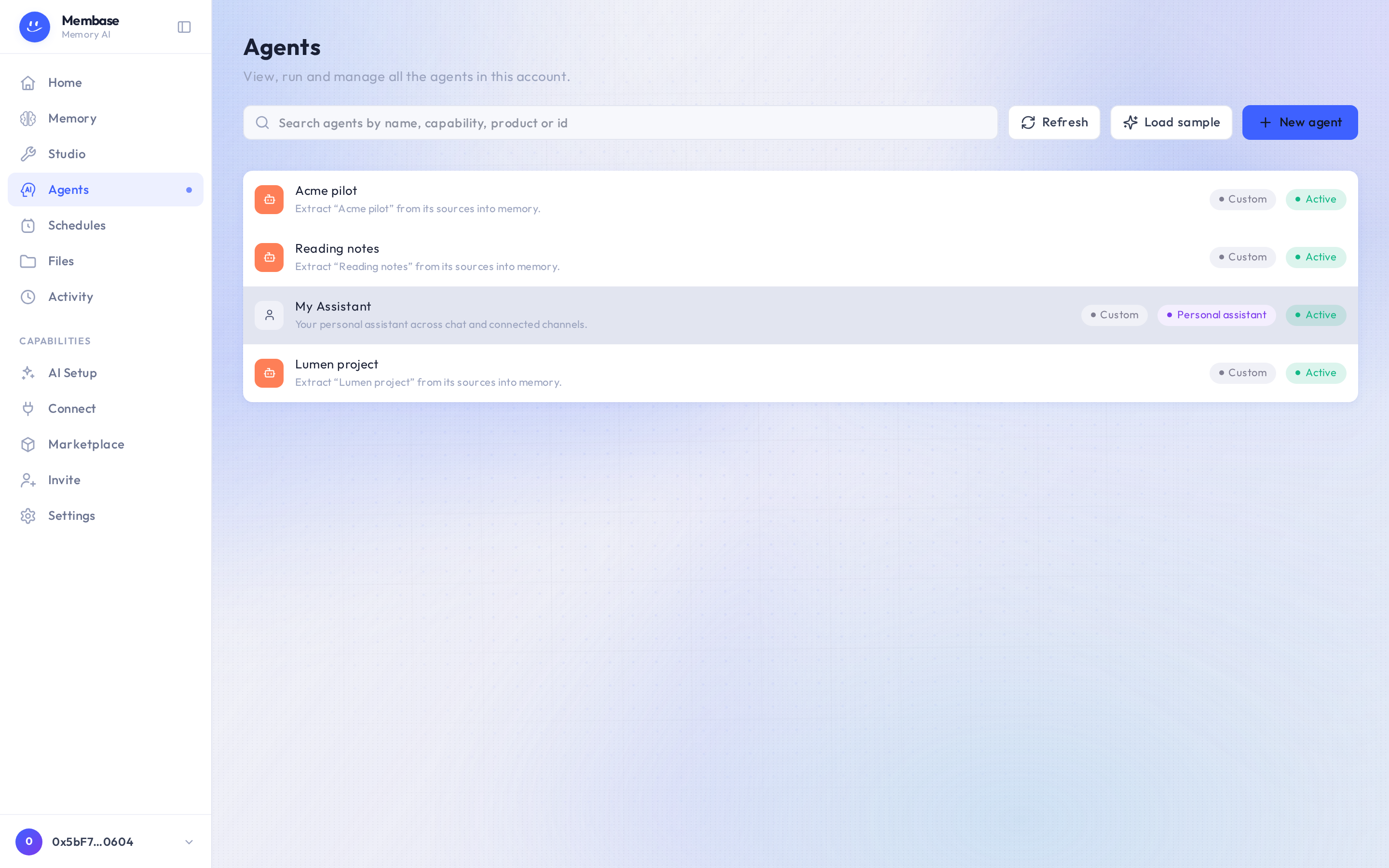
Create and edit an agent
Section titled “Create and edit an agent”- Open Agents and press Create agent. Creation scaffolds a workflow and opens it in Studio.
- Set its instructions and the workflow it should run. Studio explains the canvas and the difference between saving a draft and deploying a version.
- Save the draft. Return to Agents and open the agent’s row to see its controls and recent runs.
An agent that uses a model needs a working model source. Check AI Setup and the agent’s settings if its run reports that no model is available.
Run and inspect the result
Section titled “Run and inspect the result”- Expand the agent’s row and press Run now.
- Wait for the result. If it is still running, use View all runs to follow its status.
- Open a failed run’s details before trying again. Activity helps you find the error and distinguish a refused run from a failed execution.
Use Edit in Studio to change a custom agent. The account’s default assistant has a Settings control instead, leading to its settings on Home.
Pause or delete
Section titled “Pause or delete”Pause keeps a custom agent and its configuration; Resume enables it again. For a specific cadence, also check its row on Schedules.
Delete removes the custom agent. Confirm the browser prompt — Delete “
”? Its run history is kept. — before continuing.
The account’s default assistant has no Pause or Delete button on this page.
If something looks wrong
Section titled “If something looks wrong”| What you see | What to do |
|---|---|
| No agents yet. Select Create agent to get started. | Press Create agent to make a custom one. |
| No agents match | Clear the search or filters; use Create agent to create a custom one. |
| A run is still in progress | Open View all runs; do not repeatedly start the same work. |
| Run failed | Inspect the run error, correct the model, input or workflow, then run again. |
| An external AI is missing | Manage connected AI apps on Connect. |