Your first Memory
Create a Memory, add your notes, run it, and verify what it learned before connecting another AI.
By the end of this page you will have a Memory that has learned from your own notes, and you will know how to use it in an AI.
You need a Membase account and a small Markdown or text file with a fact you can check, such as “The Lumen launch is on 15 October.” Learning needs a working model and available turns. If a run reports that no model is available, follow AI Setup. Connecting Claude at the end is optional and requires a Claude account.
1. Create a memory
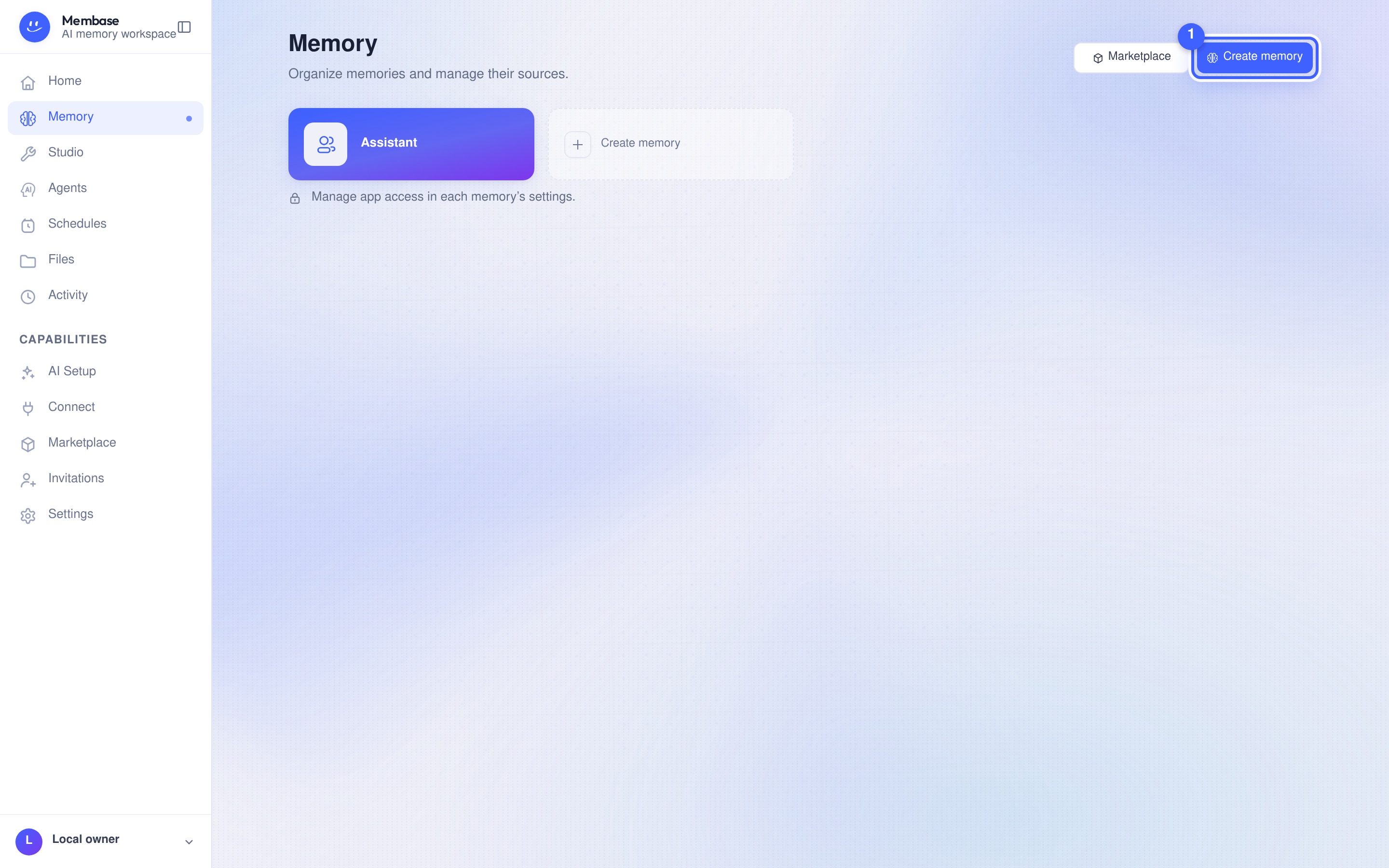
Section titled “1. Create a memory”- Open Memory in the left rail. Before you have any, the page shows only the Assistant’s own memory.
- Press Create memory ①.
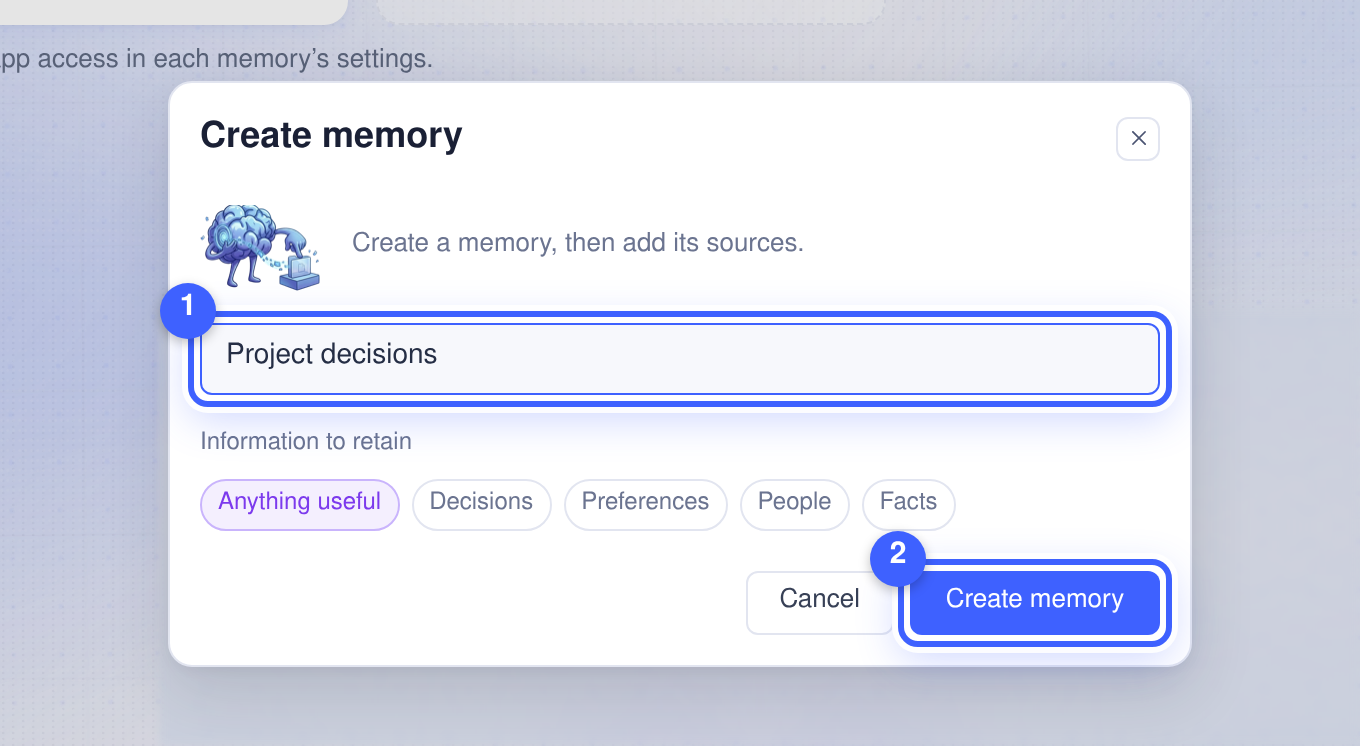
- Give it a name ①. Under Information to retain, leave Anything useful or pick a preset. Press Create memory ②.
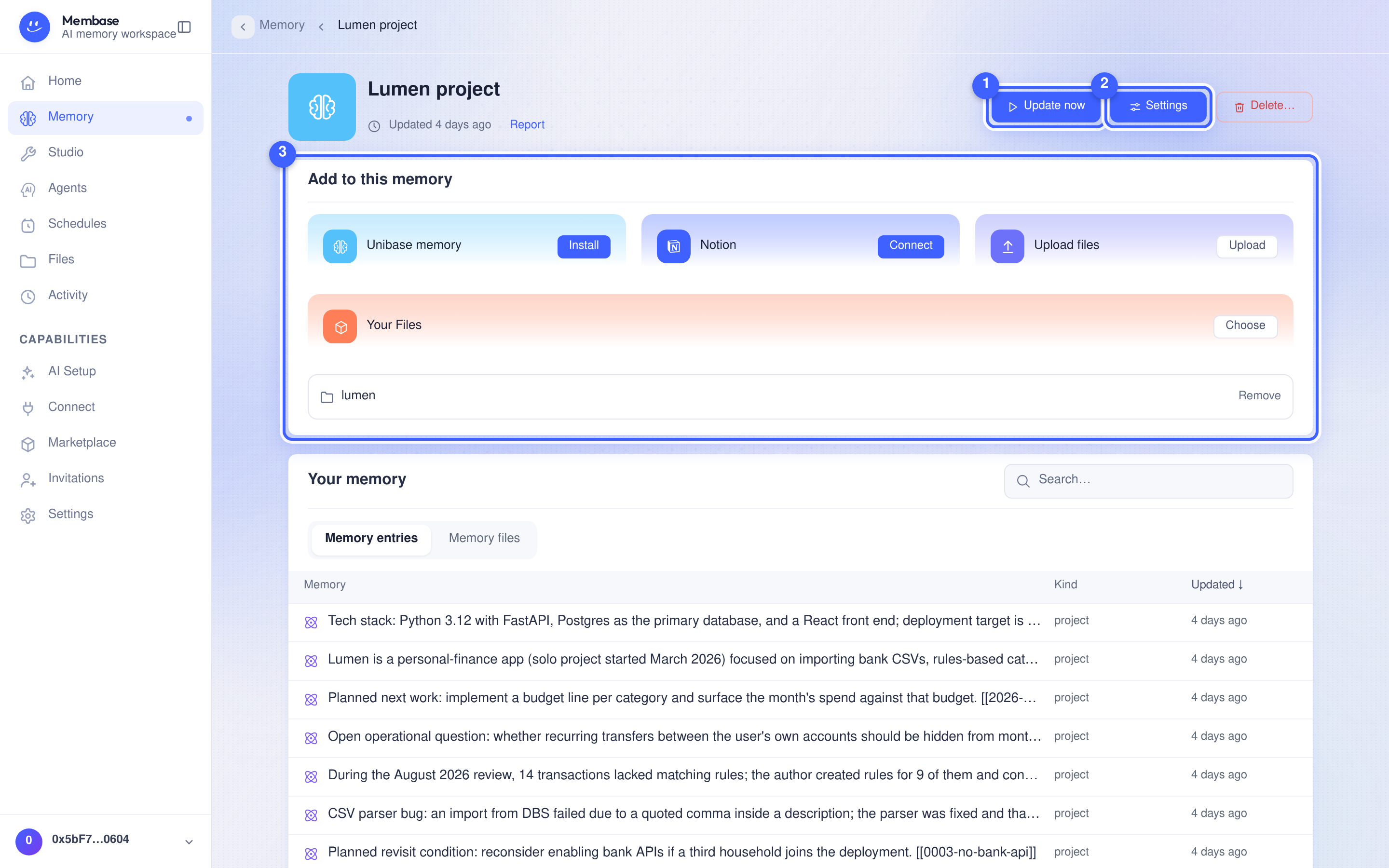
You are on the memory’s page. Its hero shows the name, an Update now button that is still disabled, Settings and Delete….
2. Add something to it
Section titled “2. Add something to it”The Add to this memory card ③ includes Upload files, Your Files and Unibase memory. Where available, Notion is another option; this walkthrough uses a file.
- Press Choose on Your Files. The Files browser opens inside the dialog.
- Tick the folder that holds your project files and confirm in the footer. If your files are
not in Files yet, press Upload on Upload files instead; they land in a folder named
“
uploads”. - The Add card now lists the folder. A toast tells you adding does not run the memory.
- Press Update now ① in the hero. The status line under the name says Running…, then Updated just now · Report.
Adding a source does not process it. Select Update now or configure a schedule to update the Memory from its sources.
3. Use it in your AI
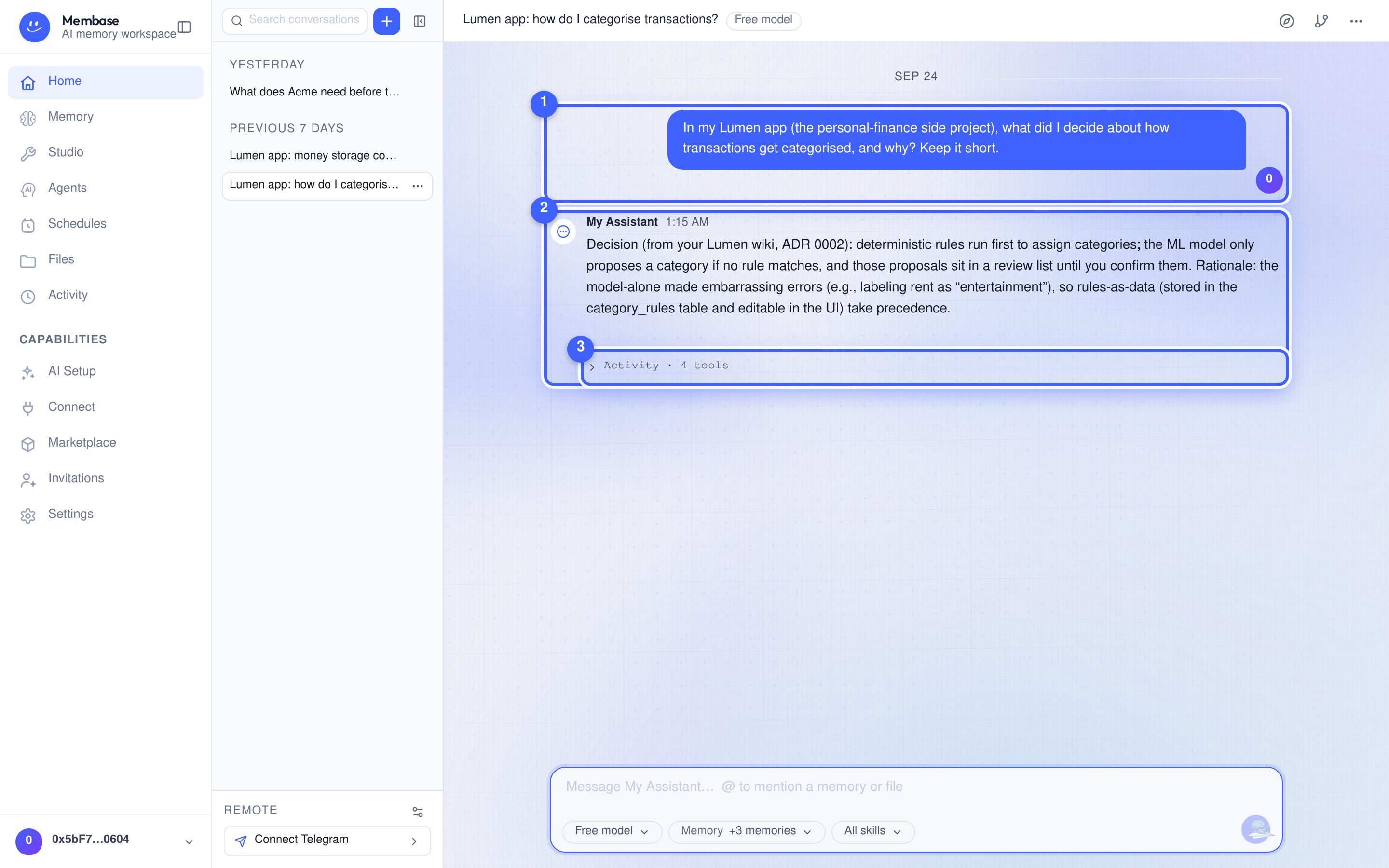
Section titled “3. Use it in your AI”First, check Your memory below the Add card. Open a result and confirm it reflects your notes. On Home, ask the assistant a specific question, such as “When is the Lumen launch?” If that Memory is not available to the assistant, select it in the assistant’s settings on Home (the ⚙ Assistant settings button beside Remote, at the foot of the conversation rail). Check the answer against your file. If the run failed, open Report and resolve that error before connecting an external app.
Optional: use it in Claude
Section titled “Optional: use it in Claude”For other clients, use Connect your AI.
- Open Connect in the left rail. Apps you have not connected show as dashed tiles.
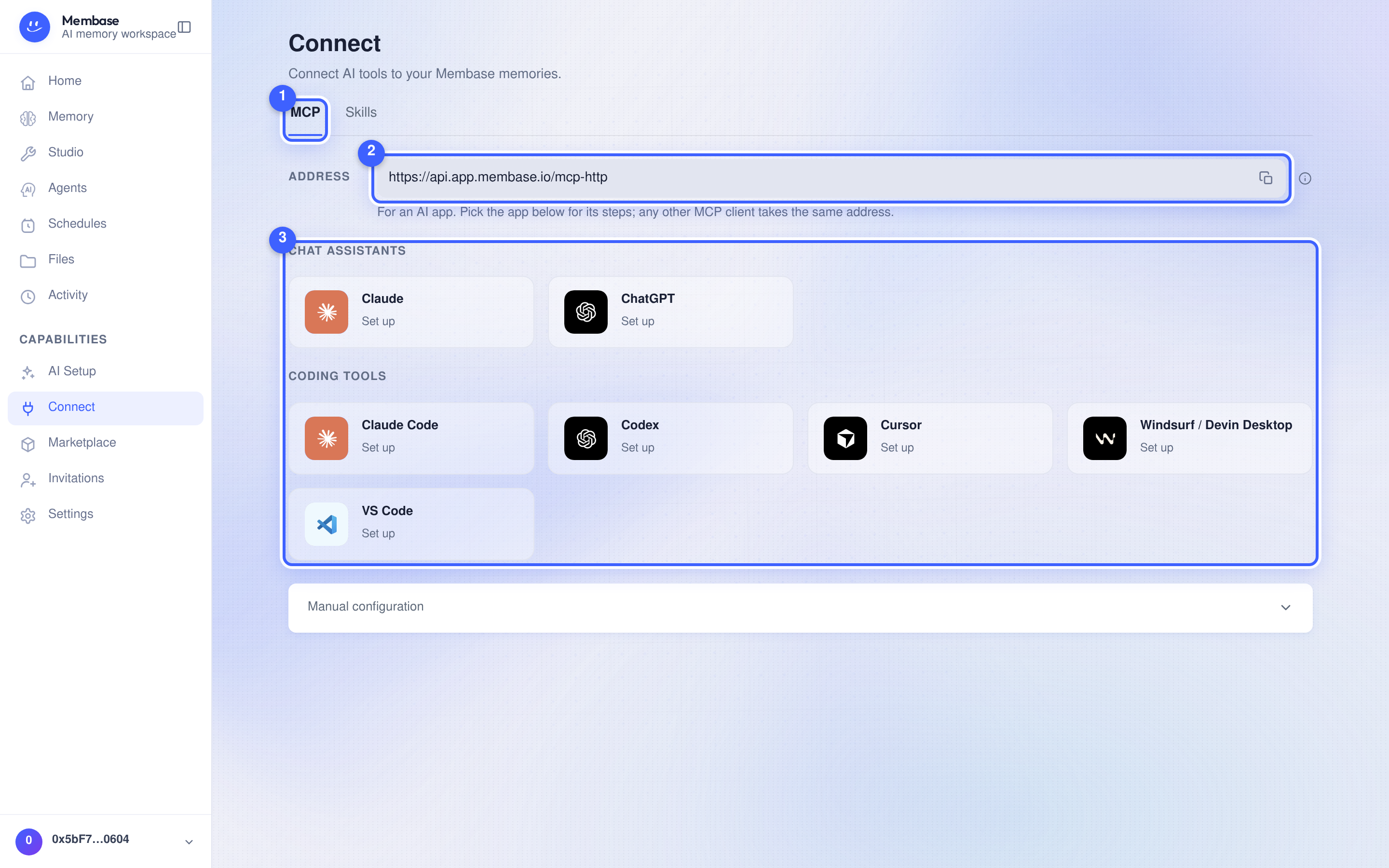
- Pick Claude ①. The connector URL and the steps for Claude unfold under the tiles.
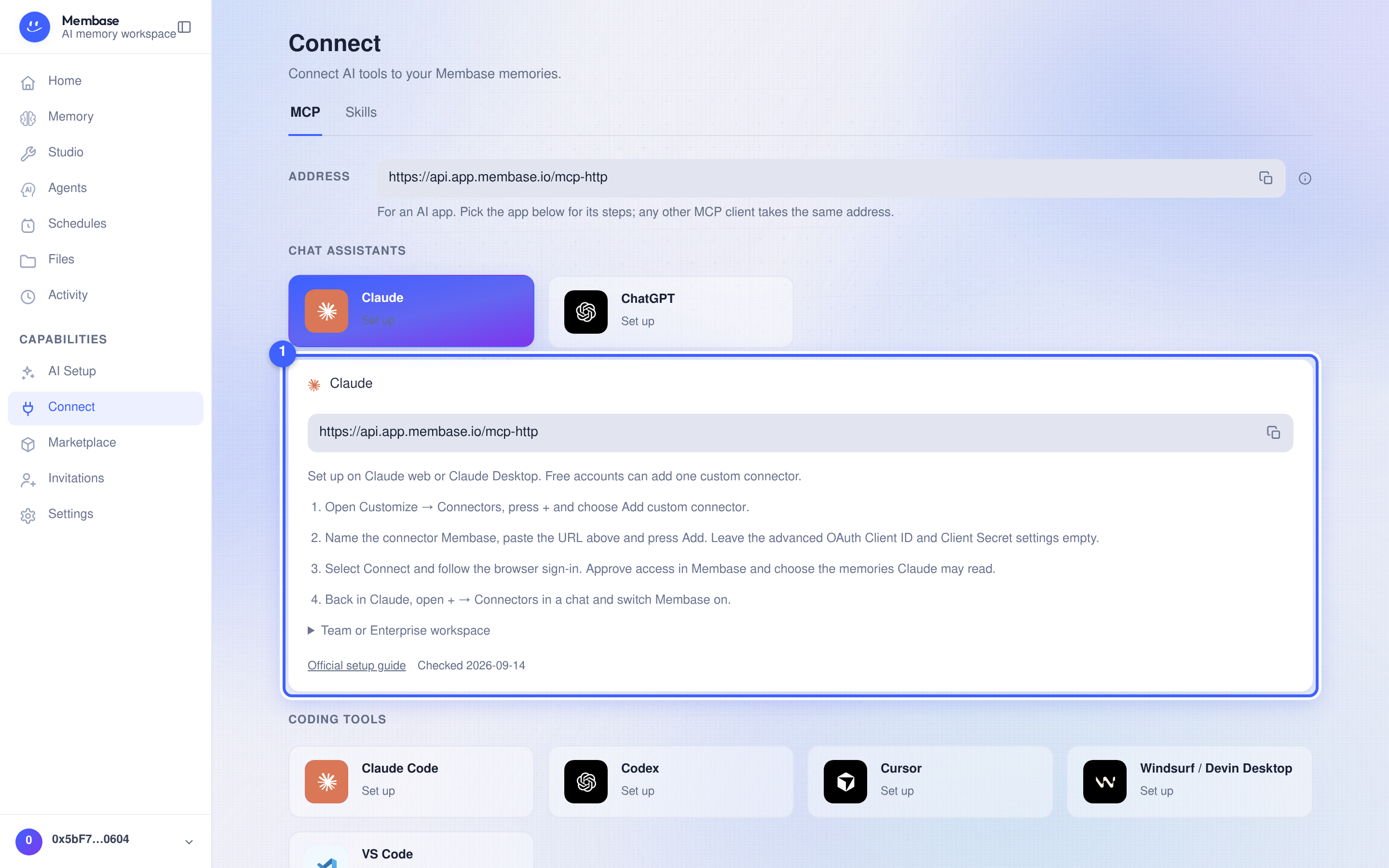
- Follow those steps in Claude. The last one sends you back to Membase to approve access and tick the memories Claude may read. Tick the memory you just made and press Approve access.
- Back in Claude, ask a question about your project. Claude reaches for your memory on its own.
After approval, the Claude tile is solid and says Authorized · awaiting first use. After a successful tool call it shows recent usage. Authorization confirms permission; the answer from your notes confirms that the integration works. The app’s page lists the Memory under Uses, with a switch you can turn off at any time.
The same memory answers on Home, too. Ask your assistant and it tells you which page it read: