Activity
Find a run, inspect its status and error, and decide what to fix before trying again.
Activity shows what ran in your account and how it ended. Use it when a Memory did not update, an agent failed, or a scheduled task did not produce the expected result.
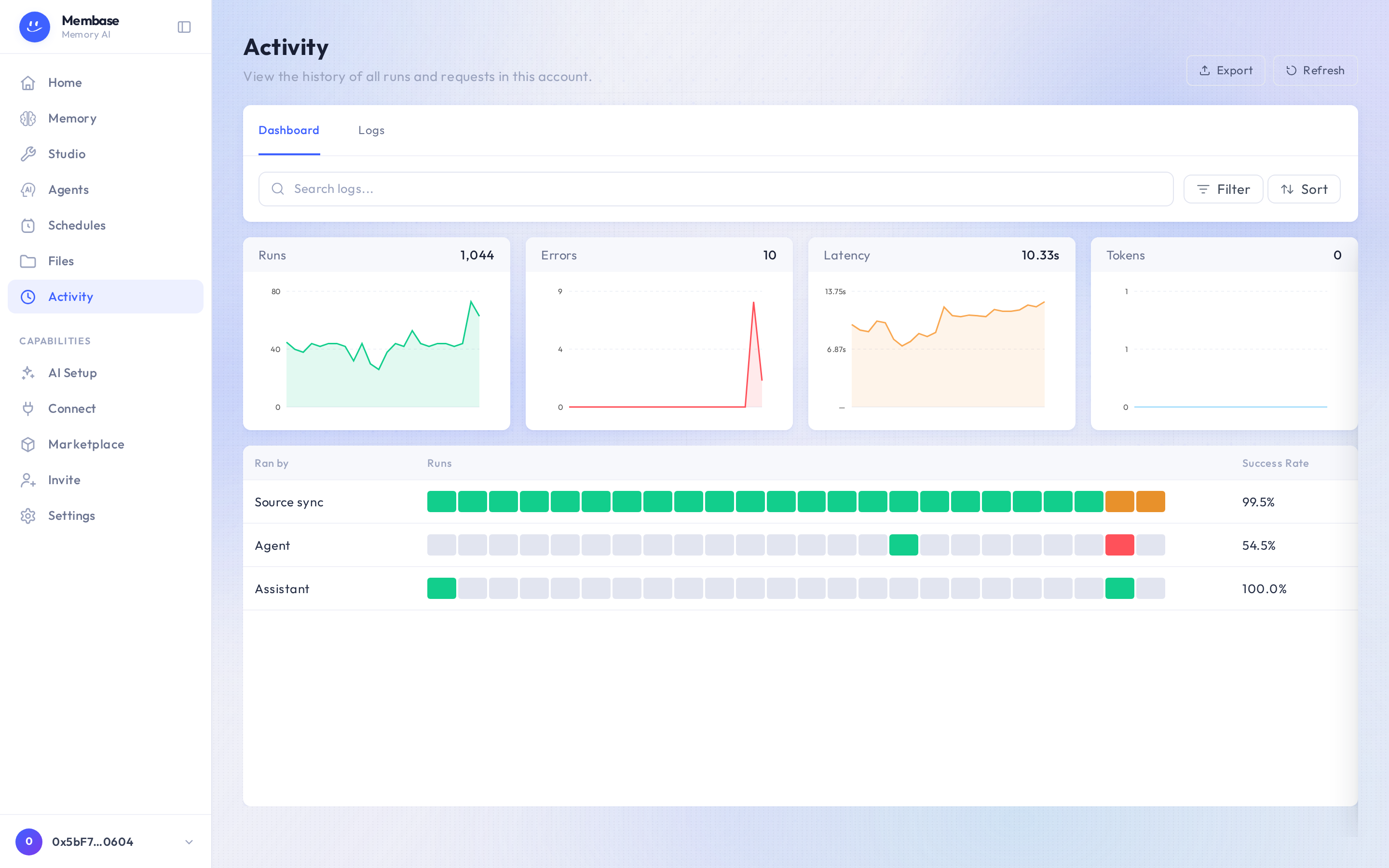
Find a run
Section titled “Find a run”- Open Activity and choose Logs. Dashboard summarizes activity across runs.
- Set a Time range that includes the attempt. Narrow by Status, Kind or Run source, or search for the run you need.
- Select a row to open its details. Check the status, timing, Ran by and the available result or error.
- Use Refresh if you are following a recent run. Export downloads the displayed selection of activity as CSV.
A Memory’s Report and an agent’s View all runs also help you locate their runs. A developer key’s own request history is on the key’s page.
Read the status
Section titled “Read the status”| Status | What to do |
|---|---|
| Pending | The run has not finished starting; wait and refresh. |
| Running | Work is in progress. Check again before starting a duplicate. |
| Success | Open the result and check that it did the work you expected. |
| Error | Read the error, fix its cause, then retry from the Memory, agent or workflow. |
| Refused | Check the reason and the relevant access or account setting before retrying. |
A successful source sync means material arrived. It does not mean a Memory learned it; return to the Memory and run Update now if needed.
Troubleshoot a failed update
Section titled “Troubleshoot a failed update”- If the error names the model, check AI Setup and the agent’s model setting.
- If it names a source or its authorization, open that source and restore access, then sync it.
- If a scheduled run never appeared, check that the schedule is enabled and that you are reading its UTC time correctly.
- If the list is empty, widen the time range and clear the filters before concluding no run exists.
A scheduled run can finish even if its Telegram delivery fails. Inspect the run first, then check the connected chat using the Telegram guide.